
As an Affiliate, we will earn a commission from qualifying sales at no expense to you.
Table of Contents
If your ONN tablet is running slowly, freezing, stuck on the startup screen, or you’re planning to sell or give it away, performing a factory reset can help restore the device to its original condition.
A factory reset removes all personal data, downloaded apps, settings, photos, videos, and files stored on the tablet’s internal memory. After the reset, the tablet will function like it did when it was first taken out of the box.
In this guide, you learn how to factory reset an ONN tablet using both the Settings menu and Recovery Mode. My video Guides.
Quick Answer: How to Factory Reset an ONN Tablet
To factory reset an ONN tablet, turn the device off completely. Press and hold the Power and Volume Up buttons simultaneously until the recovery menu appears. Use the volume buttons to navigate to Wipe data/factory reset, confirm the action with the Power button, and then select Reboot system now. The tablet will restart and return to its original factory settings.
What You will Learn
In this guide, you learn everything you need to know about factory resetting an ONN tablet. We explain what a factory reset does, when you should use it, and the important precautions to take before starting.
You will discover how to reset your ONN tablet through the Settings menu, as well as how to perform a factory reset using Recovery Mode if the device is frozen, locked, or won’t boot properly.
We also cover common troubleshooting tips, what happens after the reset is complete, and answer frequently asked questions about data loss, Google account verification, malware removal, and performance improvements.

What Is a Factory Reset?
A factory reset restores your ONN tablet to its default factory settings by erasing all user data and installed applications.
A factory reset is commonly used to:
- Fix freezing or crashing issues
- Improve slow performance
- Remove software glitches
- Remove unwanted apps or malware
- Clear forgotten passwords
- Prepare the tablet for resale or donation
What to Consider
Before starting the reset process, keep the following points in mind:
A factory reset permanently deletes:
- Photos
- Videos
- Documents
- Downloaded files
- Installed apps
- Saved settings
Back up important files to cloud storage, a computer, or an SD card before proceeding.
Charge the Battery
Make sure your ONN tablet has at least 50% battery power before starting the reset.
Remember Your Google Account
Most ONN tablets use Factory Reset Protection (FRP). After the reset, you may need to sign in using the Google account previously linked to the device.

Factory Reset an ONN Tablet Through Settings
If your tablet is functioning normally and you can access the Settings app, this is the easiest method.
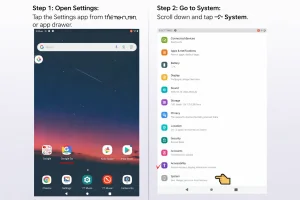
Step 1: Open Settings: Tap the Settings app from the home screen or app drawer.
Step 2: Go to System: Scroll down and tap System.
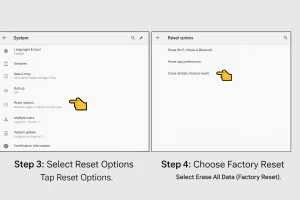
Step 3: Select Reset Options. Tap Reset Options.
Step 4: Choose Factory Reset. Select Erase All Data (Factory Reset).
Step 5: Confirm the Reset – Tap Erase All Data and follow the prompts.
Step 6: Wait for Completion – The tablet will restart and begin erasing all data. This process usually takes several minutes.
How to Factory Reset an ONN Tablet Using Recovery Mode
Use this method if your tablet is frozen, locked, or unable to boot normally.
Step 1: Power Off the Tablet – Press and hold the Power button, Tap Power Off. Wait until the tablet shuts down completely.
Step 2: Enter Recovery Mode. Press and hold the Power button and Volume Up button simultaneously. Continue holding until the ONN logo or recovery screen appears. Release both buttons.
Step 3: Open the Recovery Menu – Use the Volume Up and Volume Down buttons to navigate. Highlight Recovery Mode. Press the Power button to select it.
Step 4: Access Android Recovery – Once the Android Recovery menu appears: Volume buttons = Navigate and Power button = Select
Step 5: Wipe Data / Factory Reset. Scroll to Wipe data/factory reset. Press the Power button. Select Yes – Delete all user data. Confirm using the Power button. The tablet will begin deleting all stored data.
Step 6: Wait for the Reset Process – Formatting and resetting may take several minutes. Do not turn off the device during the process. Most ONN tablets complete the reset within 5–15 minutes.
Step 7: Reboot the System – Highlight Reboot system now. Press the Power button. The tablet will restart automatically.
What Happens After the Factory Reset?
After rebooting, your ONN tablet will:
- Start like a brand-new device
- Display the welcome setup screen
- Require a Wi-Fi connection
- Ask you to sign in to your Google account
- Allow you to restore backed-up data
Troubleshooting ONN Tablet
If Recovery Mode doesn’t appear:
- Ensure the tablet is fully powered off.
- Charge the battery above 50%.
- Hold the buttons for 10–15 seconds.
- Try Power + Volume Down if Power + Volume Up doesn’t work.
Different ONN models may use different button combinations.
ONN Tablet Stuck on Logo After Factory Reset
If your tablet remains stuck on the ONN logo, Hold the Power button for 15–20 seconds to force a restart. Re-enter Recovery Mode and perform the reset again. If the problem continues, the operating system may require repair.
Forgot ONN Tablet Password
If you’ve forgotten your PIN, password, or pattern lock, Recovery Mode allows you to perform a factory reset and regain access. However, FRP may require the original Google account credentials during setup.
Why Should you Factory Reset an ONN Tablet?
A factory reset can be an effective solution when your ONN tablet is experiencing performance or software-related problems. If the device has become slow, frequently freezes, crashes unexpectedly, or fails to boot properly, resetting it can help restore normal functionality.
A factory reset can also remove software errors, corrupted settings, and certain types of malware that may be affecting performance.
Additionally, if you plan to sell, donate, or give away your tablet, performing a factory reset ensures that your personal data, accounts, and files are completely removed.
By returning the device to its original factory settings, a reset provides a fresh start and often resolves issues that cannot be fixed through regular troubleshooting.
A factory reset gives your tablet a clean start and often resolves many software-related issues.
Coclusion
Knowing how to factory reset your ONN tablet can help resolve software problems, improve performance, and prepare the device for a new owner.
Whether you use the Settings menu or Recovery Mode, always back up important data before proceeding. Once the reset is complete, your ONN tablet will be restored to its original factory condition and ready for a fresh start.
Frequently Asked Questions
Can I factory reset my ONN tablet without a Google account?
Yes. The reset process itself does not require a Google account. However, after the reset, Factory Reset Protection may require you to sign in using the Google account previously associated with the tablet.
Will a factory reset remove all apps and files?
Yes. Everything stored on the tablet’s internal memory will be erased, including apps, photos, videos, downloads, and settings.
Does a factory reset remove viruses?
In most cases, yes. A factory reset removes malware, corrupted apps, and software issues affecting the tablet.
How long does a factory reset take?
Most ONN tablets complete the reset process within 5–15 minutes.
Will a factory reset improve performance
Yes. Removing unnecessary files, apps, and corrupted settings often improves speed and stability.