

Learning how to make a triangle in Illustrator is an essential skill for creating logos, icons, illustrations, and geometric artwork.
Table of Contents
Whether you need a perfect equilateral triangle, a right-angled triangle, or a custom shape, Illustrator offers several easy ways to create one.
In this guide, you will learn three beginner-friendly methods and finish by creating a modern geometric logo using the skills you have learned.
At the end of this guide, you will apply the techniques you have learned to create a modern geometric triangle logo.

3 Easy Ways to Make a Triangle in Illustrator
- Method 1: The Polygon Tool
- Method 2: The Pen Tool
- Method 3: Make a Right Angled Triangle using Rectangle Tool
Method 1: The Polygon Tool
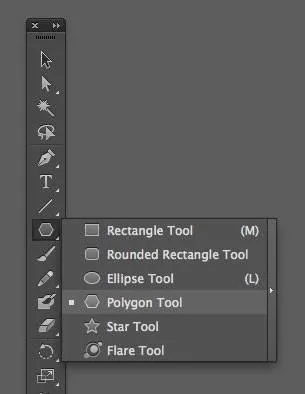
The Polygon Tool lets you create shapes with multiple sides. By setting the number of sides to three, you can quickly create a perfect equilateral triangle.
In this tutorial, we will use it to create an equilateral triangle with all sides and angles equal.
Step 1: Go to File>New or Control+N to create an artboard. A pop up menu will come up that you can set your document. Choose Ok.
Step 2: Select the Polygon Tool. If you don’t see it, click and hold the Rectangle Tool to reveal the hidden shape tools, then choose Polygon Tool.
Step 3: With the Polygon tool selected, click once on the artboard. It will prompt you on a pop up window to Set the number of sides to 3 on your shape. Leave everything as is but set the number of sides to 3, then click Ok.
Method 2: Make a Triangle with the Pen Tool
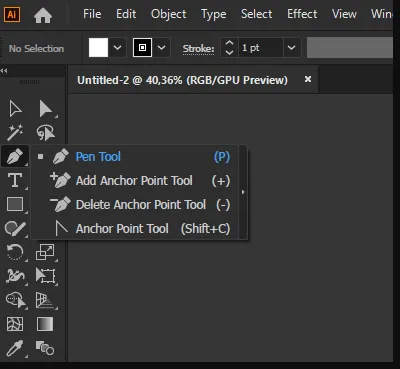
Step 1: Choose Pen tool (P)
Step 2: Click on a Point on the artboard to make the first corner.
Step 3: Move your cursor and click on another point to make the second point.
Step 4: Hover over the first anchor point. When a small circle appears next to the Pen Tool cursor, click the point to close the path.
Step 5: The triangle appears invisible because it has no color. Choose the selection tool (V) then click on the path you created to select it.
Step 6: Add color by clicking on the Swatches panel and choose a color. If you can not see the panel, go to Window> Swatches from the top menu.
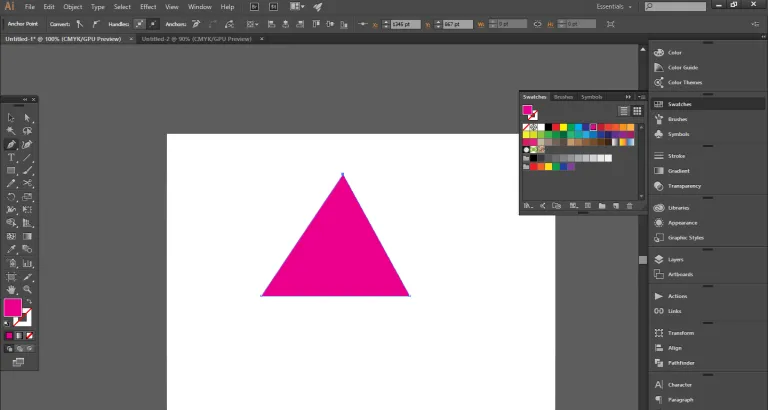
Alternatively, you can double click on the color option on the bottom of the tools panel. Swap between Fill and Stroke depending on what you want.
Method 3: Make a Right Angled Triangle
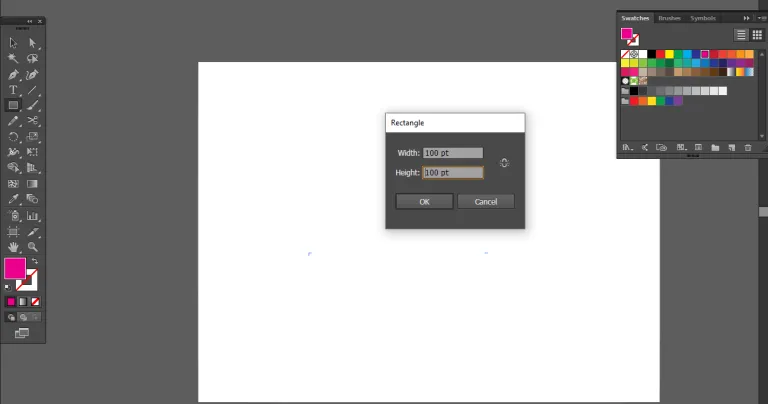
Step 1: After creating the artboard, select the Rectangle tool (M) and click once on the artboard. A pop up panel appears. Set equal values for the length and width. This forms a square shape.
Step 2: Select the square shape created. Click and drag over the top-right anchor point of the square using the direct selection tool (A), then press Delete to remove it.
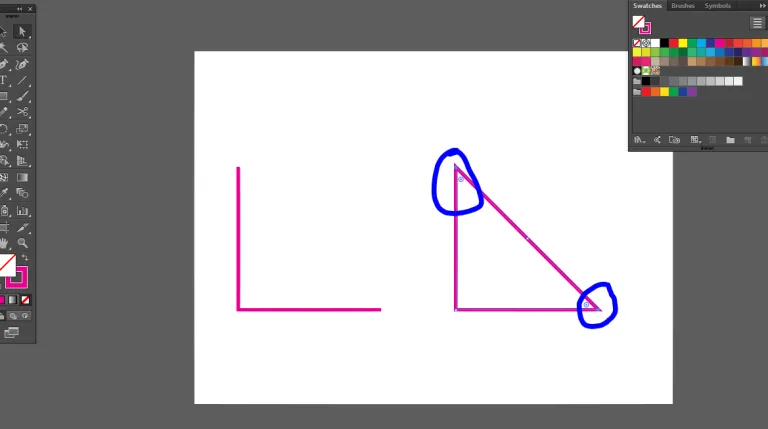
Step 3: With the Direct Selection tool selected, click and drag over the top and bottom right corner points. Select the two open anchor points, then press Ctrl + J to join them and complete the right-angled triangle.
Practice Project: Create a Modern Triangle Logo in Illustrator
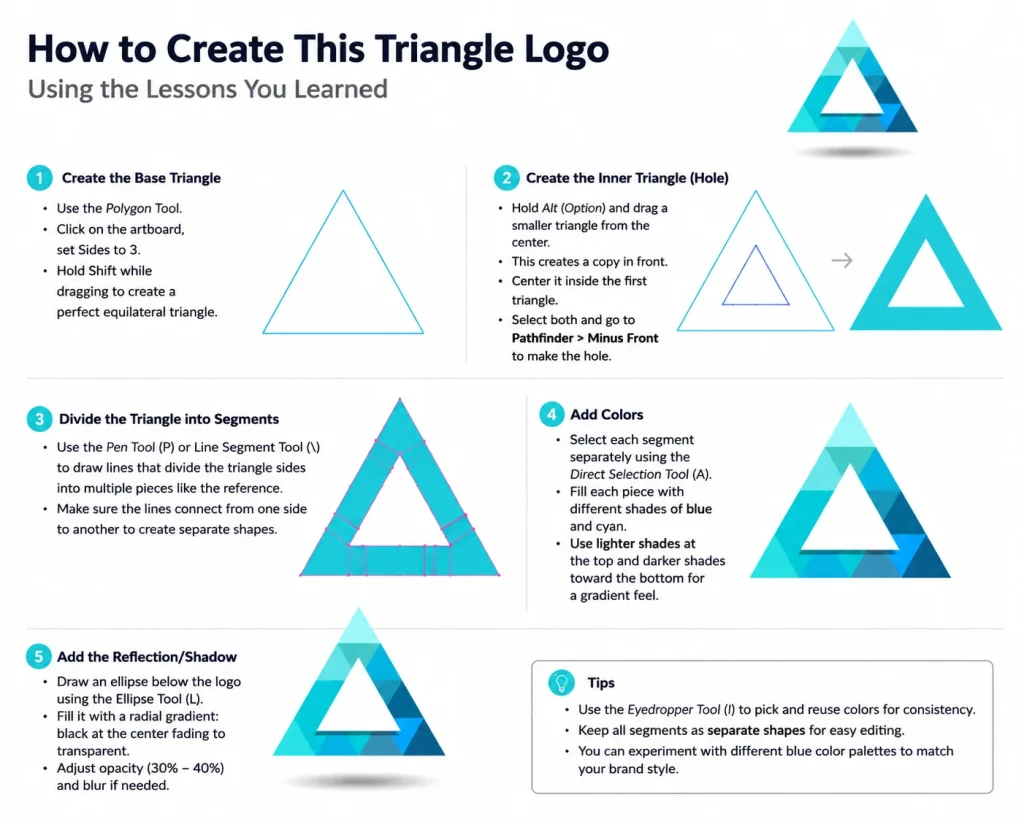
- Use any of the methods to create the Main Triangle.
- Click on the triangle you have made and hit Control+C then Control+F to copy and paste the shape. Click on one of the triangles and click and drag to make it smaller. Make sure to hold Alt as you drag to make sure sides reduce proportionally.
- Make the Center triangular Hole shape. Center the larger and smaller triangles making sure the smaller one is in front. Select both triangles and click Pathfinder > Minus Front.
- Divide the Shape using the Pen Tool or Line Segment Tool to draw several lines across the triangle.
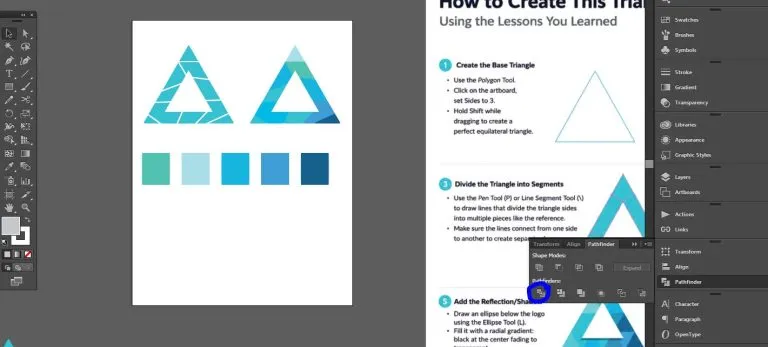
- Select everything by hitting Control+A. Go to Window>Pathfinder. Click Pathfinder > Divide. Right-click and choose Ungroup.
- Choose each section with the direct selection tool and add different color swatches. You can use the eyedropper tool for specific colors.
Conclusion
Understanding how to make shapes like triangles in Illustrator will help you create modern complex designs like logos, icons and other geometrical designs.
You can make the general shape using different methods and tools. You can use the Polygon Tool if you are creating a perfect triangle with equal sides and angles.
If you want complete creative freedom, you can use the Pen tool. Finally the rectangle Tool makes it easy to create right-angled triangles.
Related Posts
Frequently Asked Questions
How do you make a round-edged triangle in Illustrator?
If you are using Illustrator CC, go to the inside corner of your triangle. Click and drag on the points forming on the inside corner. For those using older versions like CS 6 or CS 5, Go to Effect > Stylize > Round Corners. Set the radius on the panel that comes up.
How do I change the colour of a triangle in Illustrator?
Select the triangle with the Selection Tool (V), then choose a new Fill or Stroke colour from the Swatches or Color panel. If the Swatches panel isn’t visible, go to Window > Swatches.
Which Illustrator tool is best for creating triangles?
The best tool depends on the type of triangle you need to make.The Polygon Tool makes perfect equilateral triangles, the Pen Tool for custom or irregular triangles and the rectangle Tool is best for creating right-angled triangles quickly.