
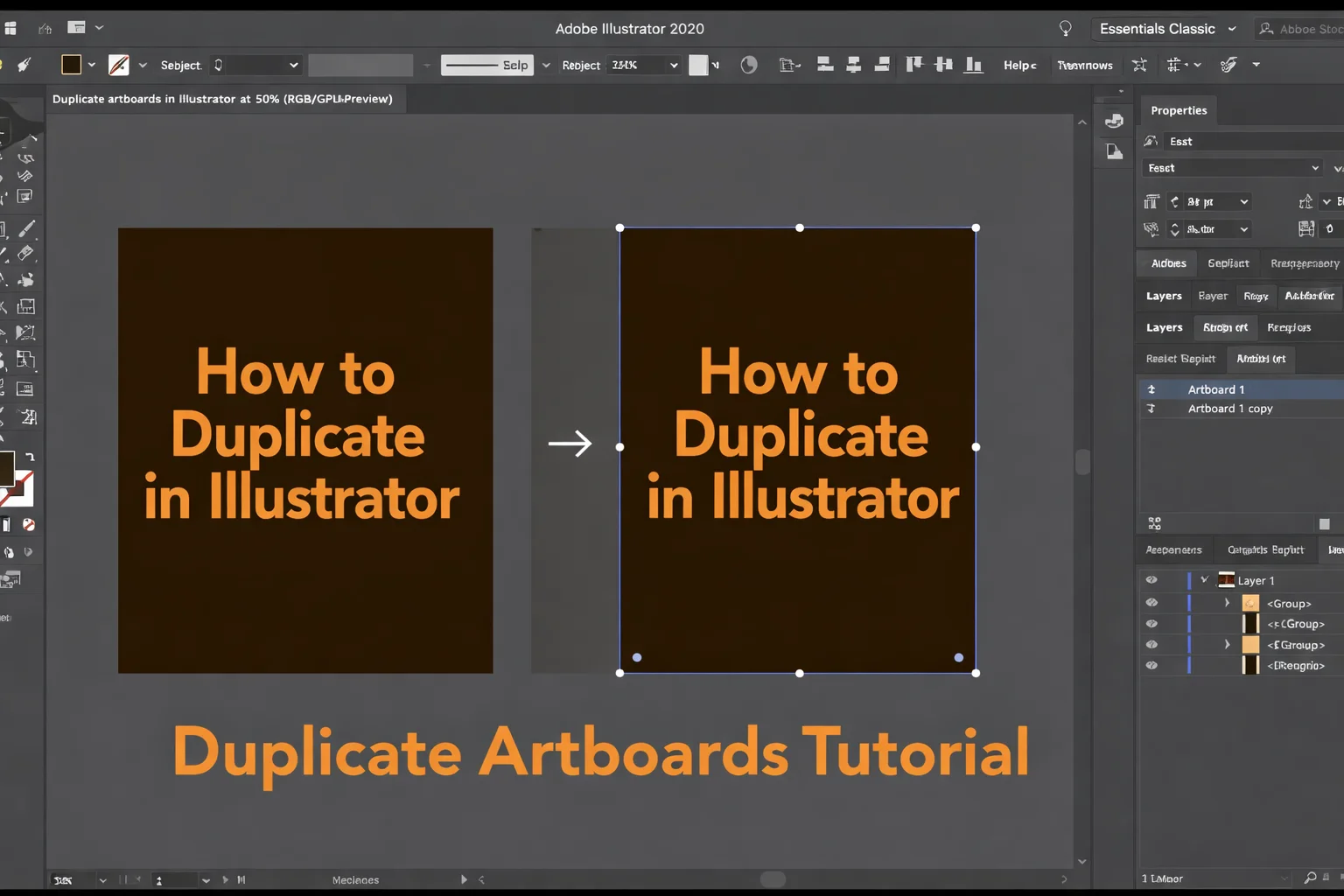
Once you understand the correct ways to duplicate in Illustrator, you can work much faster and more efficiently. Whether you are duplicating objects, artboards, layers, or text, using techniques like drag-to-duplicate, Paste in Front, Paste in Back, and precise artboard duplication helps keep your workflow clean, organized, and professional.
Table of Contents
These techniques are especially important for booklet design where consistency across pages matters.
How to Duplicate Artboards
If you intend to design booklets or designs with many pages, duplicating artboards is essential. You can either use the Artboard Tool or Artboards Panel.
Method 1: Using the Artboard Tool: Press Shift + O to activate the Artboard Tool. Select the artboard, hold Alt (Option on Mac), and drag to duplicate it. This is the fastest way to create multiple pages.

Method 2: Using the Artboards Panel: Go to Window > Artboards, click the menu icon, and select Duplicate Artboard. This method is useful for managing and organizing many pages.
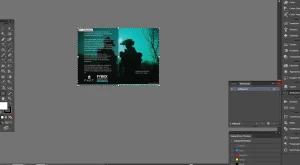
The first artboard you create becomes Page 1, and every duplicated artboard continues the sequence (Page 2, Page 3, etc.), which is important for booklet structure.
How to Copy and Duplicate Layers
Layers help you keep your design structured and editable. You can do this using the Layers Panel or by just Dragging and dropping on the create layer icon.
Method 1: Duplicate from Layers Panel: Go to Window > Layers, select a layer, and choose Duplicate Layer from the menu.
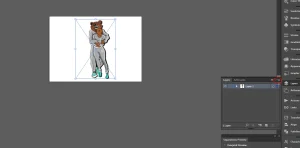
Method 2: Drag to Duplicate: Hold Alt (Option on Mac) and drag a layer onto the Create New Layer icon. Layers are an important part of duplication and help keep your design organized, especially in multipage booklet layouts.
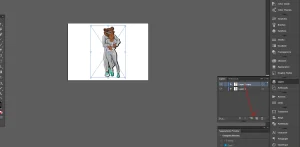
Duplicating Objects, Texts, and Shapes
Duplicating elements saves time and keeps your design consistent.
Method 1: Copy and Paste: Select an object, text or shape and press Ctrl + C to Copy and Ctrl + V to Paste.
Method 2: Paste in Place (Very Important): Ctrl + F (Paste in Front) and Ctrl + B (Paste in Back). Paste in Front places the duplicate exactly on top of the original while Paste in Back places it exactly behind the original. This is useful for perfect alignment without repositioning.
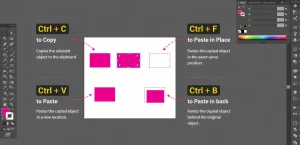
Method 3: Alt Drag Duplicate: Hold Alt (Option on Mac) and drag to instantly duplicate any element. This is one of the fastest design methods.
Method 4: Repeat Action: Press Ctrl + D (Cmd + D on Mac) after moving an object to repeat the last action. This is perfect for spacing, patterns, and repeated layouts.
How to Create a Multipage Booklet in Adobe Illustrator (Simple Steps)
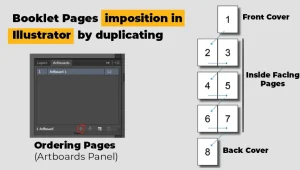
Creating a booklet is easy because each artboard acts as a page.
Step 1: Create First Artboard: Go to File > New and set your page size (A4 or A5). This becomes Page 1.
Step 2: Duplicate Artboards: Use Shift + O, select the artboard, hold Alt, and drag to duplicate pages quickly.
Page Order Tip:
- First artboard = Page 1
- First duplicate = Page 2
- Continue left to right in reading order
Step 3: Design Each Page: Treat each artboard as a separate booklet page. Copy elements between pages using Alt drag or copy/paste.
Step 4: Maintain Consistency: Use guides, grids, and margins to keep all pages aligned and professional.
Conclusion
Understanding how to copy, duplicate, merge, and group elements in Adobe Illustrator is essential for building an efficient design workflow. Mastering artboards, layers, objects, and text duplication helps you create clean and consistent designs while saving time. For text curving and warping, check out the next post.
These skills are especially powerful for booklet design, where speed, accuracy, and layout consistency are important. By using the right duplication techniques, you improve workflow efficiency, reduce design errors, and produce more professional and structured booklet layouts with ease.
How can you duplicate an artboard and everything on it?
You can duplicate an artboard and everything on it using the Artboard Tool. Just Press Shift + O to activate the Artboard Tool. Select the artboard, hold Alt or Option on Mac, Click drag to duplicate it. This is the fastest way to create multiple pages.