
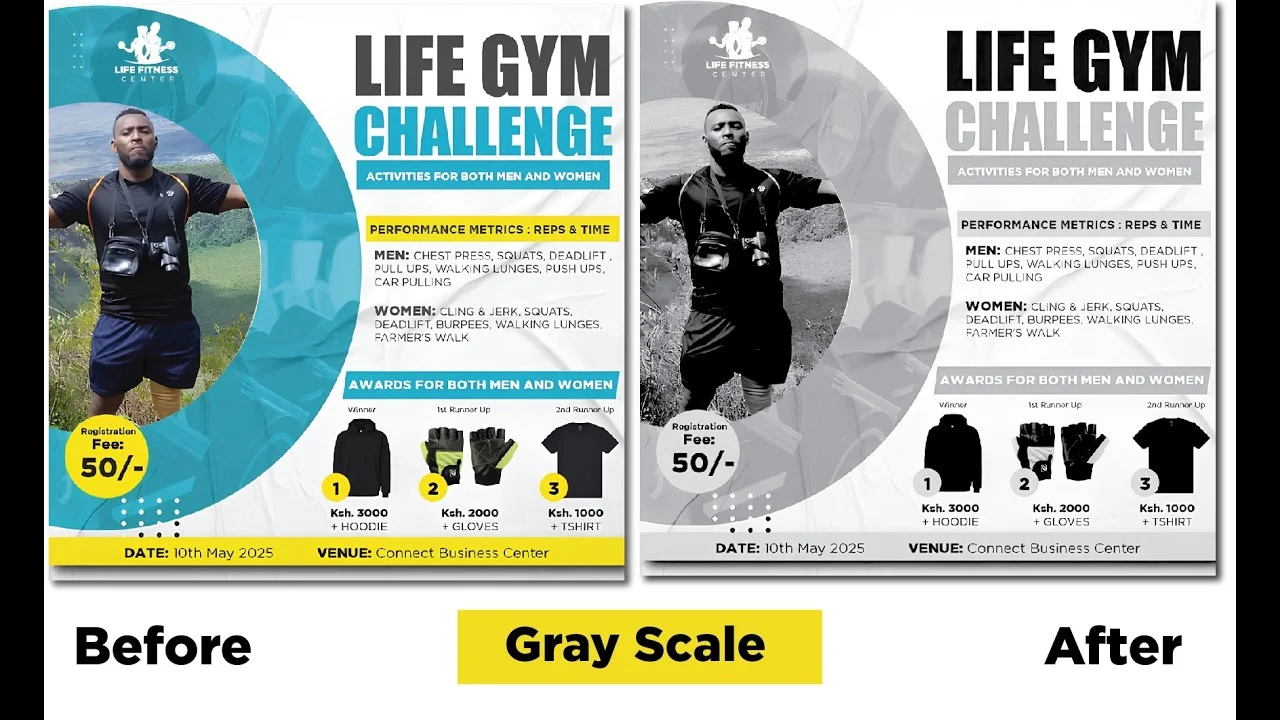
Converting an image to black and white in Illustrator brings out its clean, elegant and professional look. You can do this for logos, posters, flyers, banners, and other designs. Illustrator offers several ways to remove color while maintaining image quality.
Table of Contents
To make an image black and white in Adobe Illustrator:
- Step 1: Select the image.
- Step 2: Click Embed if prompted.
- Step 3: Go to Edit > Edit Colors > Convert to Grayscale.
- Step 4: Export the image.
Preparing Your Workspace in Illustrator
Before you start, you need to set up your software depending on the final usage of the image, whether for printing or screens. Adobe Illustrator has two key color modes.
You can either use RGB or CMYK color modes. Both can be used to convert images to black and white.
RGB is used when you want a document for social media or screens. CMYK on the other hand is used when you intend to print the documents or images. I will show you how to set up both of them.
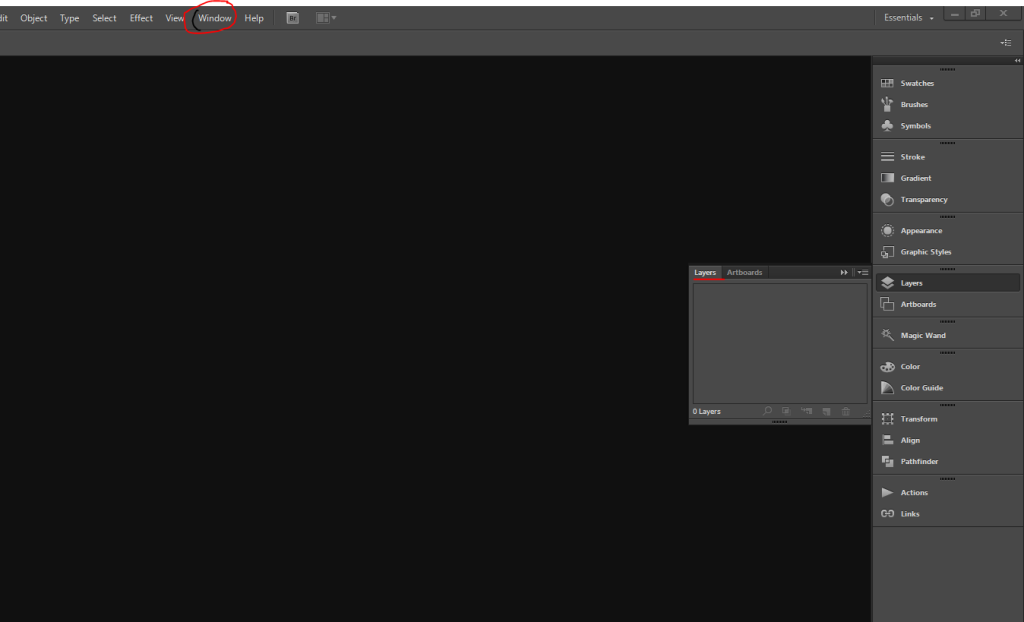
To set up, Open Adobe Illustrator and ensure the Layers panel is visible. To do this, go to Window>Layers.
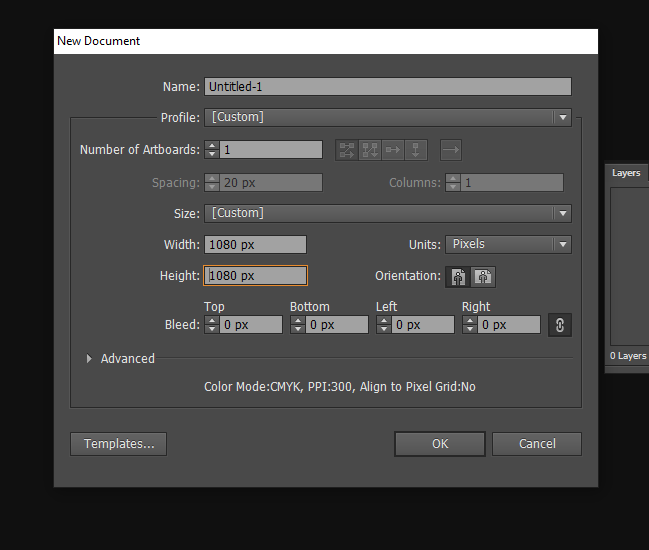
To create a new workspace , go to File>New or Control+N and set up document sizes and bleed then Click Ok. An artboard appears on your screen.
You can change the mode at any time by going to File>Document Color Mode and choosing RGB or CMYK. I will leave it as CMYK.
Go to File>Place to import your image.Browse to the location of your image and select it to import it to your workspace. Now you are ready to make it black and white.

Different Methods to Convert an Image to Black and White
Depending on your image, you can use different methods to achieve a black and white image in Illustrator.
- Method 1: Convert Using the Grayscale Mode
- Method 2: Remove Saturation to Make an Image Black and White
- Method 3: Image Tracing
Method 1: Convert Using the Grayscale Mode
This is the easiest way to do it.
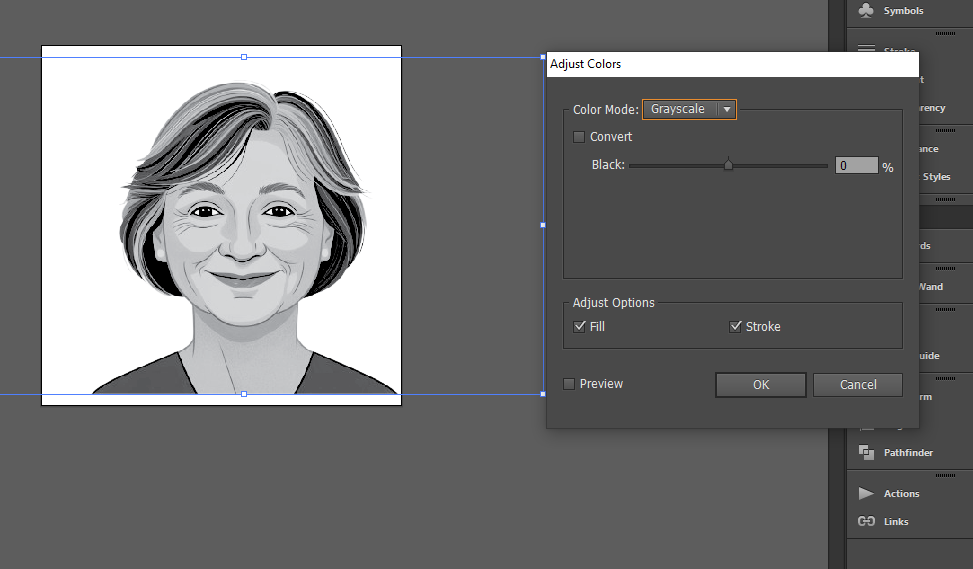
- Select your image by clicking on it then choose embed on the top menu.
- Navigate to Edit > Edit Colors > Convert to Grayscale.
- Illustrator will automatically convert the image to grayscale, removing all color.
- If needed, use Recolor Artwork or Opacity settings to fine-tune the appearance of the grayscale image.
Method 2: Remove Saturation to Make an Image Black and White
- Go to File>Open and navigate to the image to import it to Illustrator.
- Select the image, then go to Edit > Edit Colors > Saturate
- Moving the slider up will saturate the colors and make it more colorful.
- Moving the slider in the opposite direction will desaturate your image to black and white.
Method 3: Image Tracing
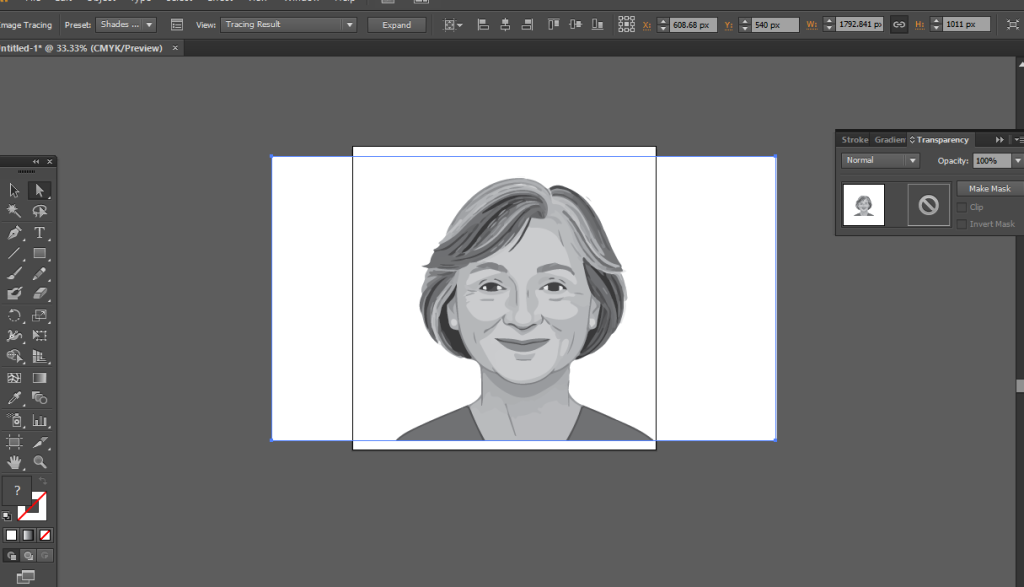
You can also make the image black and white by converting it to a vector with shades of gray. Select the image then go to image trace on the drop down menu. Choose shades of gray from the drop down.
Method 4: Use Recolor Artwork
- Select the image or artwork.
- Go to Edit > Edit Colors > Recolor Artwork.
- Open the Advanced Options.
- Convert the colors to grayscale.
- Click OK to apply the changes.
Why Convert an Image to Black and White?
You do not have to convert all images or designs to black and white. However, in selected designs, you will notice Black and white imagery to be visually appealing in its simplicity.
By removing color, you will bring out texture, and emphasize form and contrast for a different and unique visual experience for the viewer. This technique is often used in branding, advertising, and fine art to create a strong, memorable impact.
How to Exporting Your Black and White Image
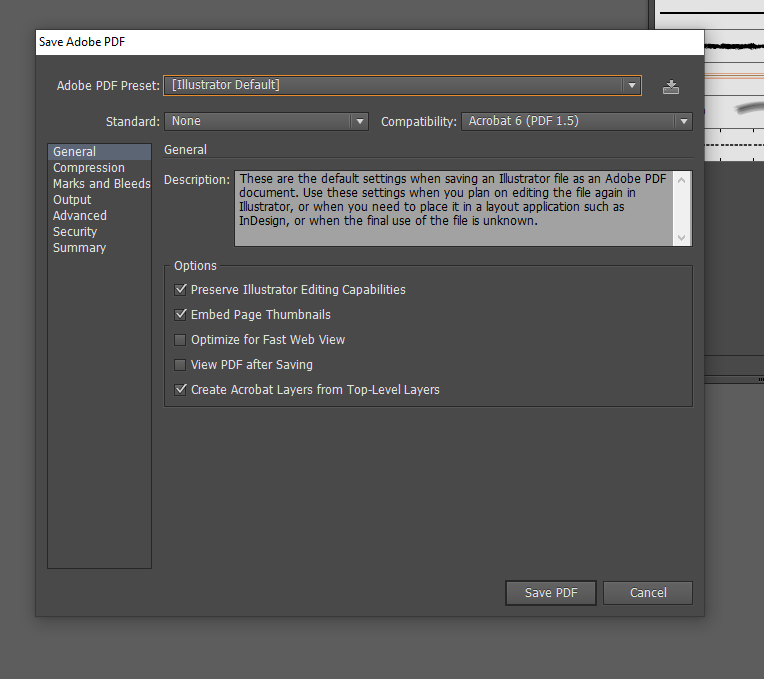
Go to File>Export then choose the necessary format like JPEG or PNG formats. For PDFs, go to File>Save as>PDF then adjust the settings to save.
If you encounter issues, make sure the image is embedded or and in high resolution as well.
Black and White vs. Grayscale: What’s the Difference?
Some artists and designers use black and white and grayscale interchangeably. However, they are technically not the same.
Black and white uses two colors, that is black and white while Grayscale uses different shades of black.
Black and white images contain only black and white tones, while grayscale images contain multiple shades of gray. Grayscale is often used for photographs because it preserves detail and tonal variation.
Real-World Use
I regularly use Illustrator’s black-and-white conversion tools when preparing artwork for one-color printing and creating alternate versions of posters. While full-color designs look great on screens and premium print materials, many print projects require a simpler and more cost-effective approach.
For example, when designing posters for community events, notices, or promotional campaigns, I often create a black-and-white variation alongside the full-color version. This ensures the design remains clear and professional even when printed on standard office printers or photocopiers.
Converting the artwork to grayscale allows me to check whether important elements such as headings, logos, icons, and call-to-action sections remain visible without relying on color. If certain areas become difficult to distinguish after the conversion, I can adjust the contrast, increase font weights, or modify graphic elements before exporting the final file.
The same process is useful when preparing one-color print jobs. Many printing services offer lower-cost single-color printing options, especially for flyers, handouts, newsletters, and event posters. By converting the design to black and white in Illustrator before sending it to print, I can preview exactly how the final output will appear and avoid unexpected results.
Creating a dedicated black-and-white version also helps maintain consistency across different distribution channels. Readers who print the document at home, view it on monochrome devices, or photocopy it later will still receive a clear and readable design.
Related Post:
Frequently Asked Questions
Can I make a vector image black and white in Illustrator?
Yes. Select the vector artwork and use Recolor Artwork or Convert to Grayscale from the Edit Colors menu.
Why is my image still showing color after converting to grayscale?
The image may not be embedded or some color settings may still be applied. Try embedding the image and converting it again.
Does converting to grayscale reduce image quality?
No. Grayscale conversion only removes color information and does not reduce image resolution.
Can I convert a JPEG image to black and white in Illustrator?
Yes. Import the JPEG image, embed it, and then use Convert to Grayscale or Image Trace.